8 Camp Computer: the GUI client for Camp
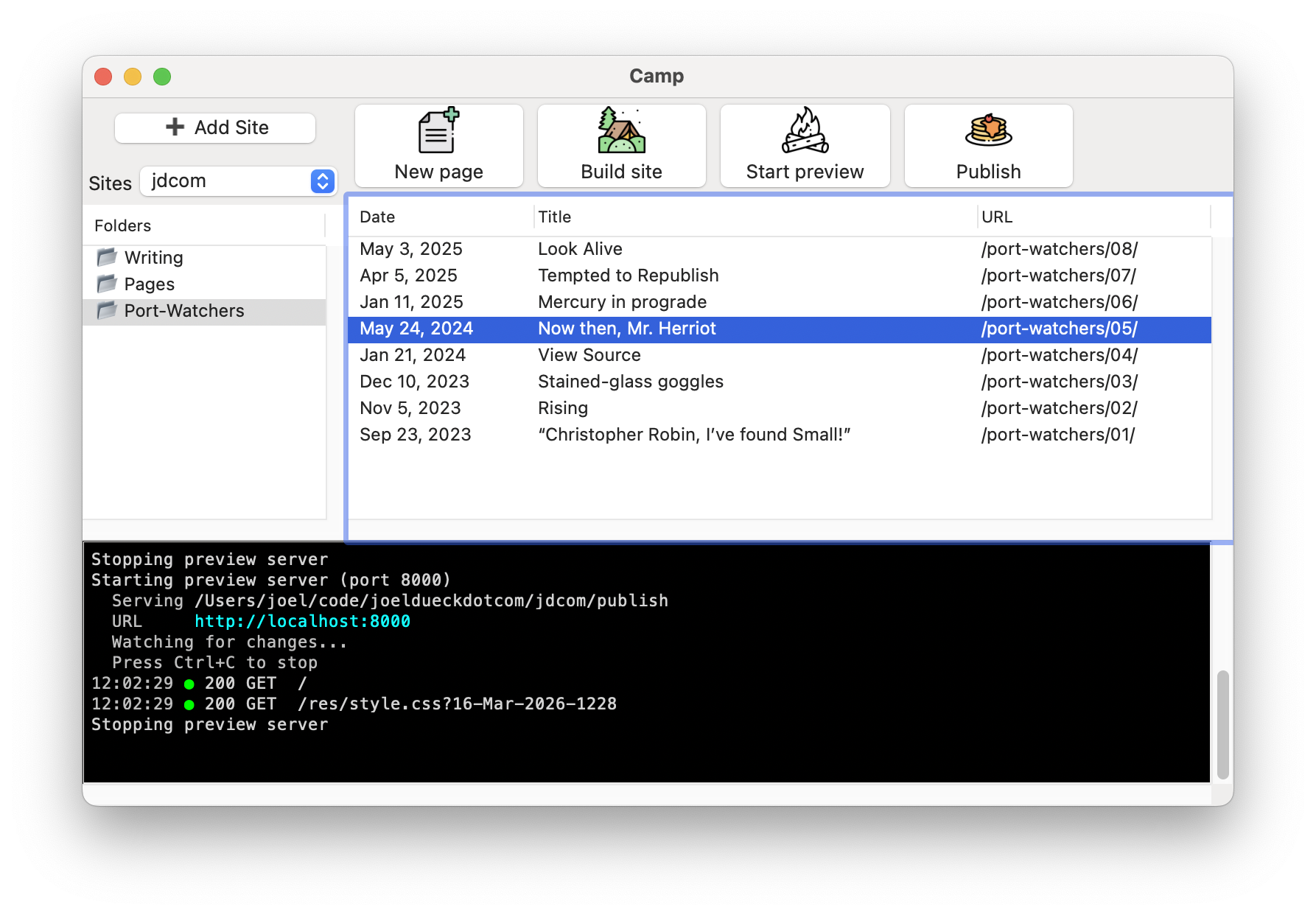
Camp comes with Camp Computer, a simple app that hides all the site scaffolding and removes friction from common operations when you’re ready to write. (The app is not intended to be an IDE for designing and developing the site itself.)
Camp Computer is tested on Mac OS; it should work on other platforms, but there may be bugs.
It must be installed separately with raco pkg install camp-app. On Mac OS, if Camp is installed in user scope, the GUI app will be copied to your user’s "Applications" folder automatically.
8.1 User interface
Page management: You can double click on individual sources in the right-side pane to open them in the built-in editor. (To use an external editor instead, select one by clicking File menu → Preferences….) You can also right-click a source file to get a context menu with Edit, Preview and Delete options. Previewing will start the project server (if it is not already started) and open your browser to the localhost URL for that page.
The Status column shows Draft for any page whose 'draft? meta is present and not #f. Click the column header to sort the drafts together.
The toolbar buttons are pretty straightforward:
New page: Prompts you for metadata for the new page. If the current folder’s collection has any taxonomies defined, you can specify those as well.
Build site: Same effect as running raco camp build. Hold ⌘ while clicking to do a full rebuild: the build runs in a separate process, guaranteeing that all modules are loaded fresh. Use this if you suspect a change isn’t being picked up by a normal build. A full rebuild is also available from File menu → Full Rebuild (or ⌘⇧B).
Start/Stop Preview: Starts/stops the local server for previewing the site. While the server is running, changes are picked up automatically: edits to page sources and static files trigger a rebuild or sync, as do edits to render modules, to .rkt modules in the site root, and to the site config itself. (If a config edit fails to load, the error is logged and the app keeps running with the previous config.) A new browser tab is opened to the localhost URL for the server every time the server is started.
Two changes are not picked up live: changing the site’s output folder requires stopping and restarting the preview server, and edits to helper modules in subfolders of the site root do not trigger a rebuild by themselves (they are still reloaded as part of the next build).
Publish: Same effect as running raco camp deploy.
8.1.1 The built-in editor
Double-clicking a source (or creating a new page) opens it in a simple editor window, one window per file. The editor provides:
Syntax highlighting for every kind of file in a Camp site — Punct pages, camp/site and camp/book configs, and plain Racket modules — chosen automatically from each file’s #lang line. Punct pages are highlighted as Markdown: headings, emphasis, code spans and fenced blocks, links, list and quote markers, and the metadata block each get their own color, while ordinary prose stays in the plain text color.
Saving (⌘S) immediately rebuilds the site — or, while the preview server is running, lets its file watcher do so. The right end of the status bar reads Modified while the buffer has unsaved changes; each save replaces it with a Vim-style report of what was written and when (e.g. Saved: 8L, 246B written • 14:22 Aug 22).
Autocomplete: press ctrl. to complete identifiers defined in or imported by the file. Completions are recomputed in the background as you edit; if the file doesn’t currently expand, the editor falls back to words already present in the buffer.
Find (⌘F, or Edit ▸ Find) reveals a field in the status bar: typing highlights all matches, return jumps to the next one, and esc hides the field and returns to the text.
Hard-wrapping: ⌘J (Edit ▸ Re-wrap Paragraph) re-wraps the paragraph around the cursor to the wrap column set in Preferences… (like Vim’s gqip), and it is Markdown-aware: a bulleted or numbered list item is wrapped by itself, keeping its marker and giving continuation lines a hanging indent; blockquoted text keeps its > prefix on every line; and headings, code fences and their contents, tables, and the metadata block are left alone. The same rules apply as you type: when a typed character carries the current line past the wrap column, that line is broken where ⌘J would break it, and the words that overflow move to the start of the paragraph’s next line, which passes its own overflow down in turn until a line fits. Lines are never joined upward, and a line that ends in a Markdown hard break (two spaces or a backslash) keeps its overflow on a line of its own; use ⌘J to close up a paragraph after deleting from it. The window’s soft wrap is measured in pixels, so in a proportional font it cannot stand in for a character count. Turn this off with Break lines at the wrap column while typing in Preferences….
A centered text block, as in iA Writer: the margins grow as the window widens, and never shrink below a comfortable minimum.
Line numbers (toggle them with View ▸ Line Numbers, ⌘⇧L, or in Preferences…; they sit in the left margin, so the text stays put either way), parenthesis matching, and language-aware indentation.
Optional Vim keybindings, toggled in Preferences…; the mode shows as a badge at the right end of the status bar, and Modified at the left end. These are provided by the drracket-vim-tool package, which camp-app installs as a dependency (as a side effect, a Vim Mode also becomes available in DrRacket).
If the file is changed on disk by another program while open in the editor, the editor offers to reload it.
8.1.2 Site Management
Camp Computer can manage multiple sites. Click Add site to add an already-created site to the site switcher.
To remove a site from the site switcher, click File menu → Remove this site. This does not affect the site’s files, it only eliminates it as an option within the site selector.